Play the Lord of the Rings Online on Linux!
So you want to give LOTRO a try on your favorite linux distro but the .NET launcher doesn't work?
Well, the good news is that the game can be run using a standard wine installation, all you need is an alternative launcher.
Install (or copy over from an existing installation), get one of the launchers and run it.
Refer to the section Troubleshooting below for common problems and solutions.
The WineHQ application database features the game here.
If you use my launcher script to play/patch, you can now (as of 2013-10-02) put my companion script along with the launcher,
which will pick it up (if you keep the name) and give you some meaningful progression indicator.
In contrast to the original launcher, this is done on your request, not every time you try to log in to the game.
This will be generally of benefit to you (it's faster plus any hiccup of the update servers leaves you unaffected).
It can, however, lead to you starting an outdated version of the game client, resulting in a mostly black screen with an appropriate error message.
In that case, close the game and select the option to patch it up before starting it again.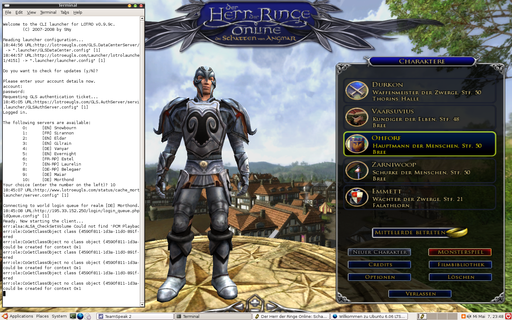
As the script is really just a wrapper around some wget calls, the first thing to do is to tell wget to not be quiet.
To do that, locate the SETUP section and the line that starts with wgetOptions and replace -q with -v (v for verbose):
Likely reasons for failure include the servers being down on maintenance day or problems with the secure connection.
Nicolas Trecourt was kind enough to inform me that there is a problem with the SSL/TLS support of Turbine's servers and newer client side libraries.
If you encounter the connection not progressing at all, this might be the reason and it can be worked around by telling wget to default to SSL like so:
Well, the good news is that the game can be run using a standard wine installation, all you need is an alternative launcher.
Alternative Launchers
There are a few ways to launch the game client:- One is my lotrolauncher shell script (the current version is 1.1.1 as of 2014-11-27).
I also made available a companion script for monitoring the patch progress. - The others are a graphical launcher written in mono
and its Python-based successor PyLotRO, courtesy of Alan Jackson.
NOTE: His site seems to have expired; for now, you might want to refer to Lynx3d's github page or William Magill's PyLotTRO site. - The above links being outdated, I received word from June Stepp with links to their OneLauncher (python, for LotRO and DDO) and another repository for PyLotRO.
Setup
For any recent version of wine (ie 1.5.x), there is virtually no configuration needed.Install (or copy over from an existing installation), get one of the launchers and run it.
Refer to the section Troubleshooting below for common problems and solutions.
The WineHQ application database features the game here.
Game Updates
You can update the game using the alternative launchers.If you use my launcher script to play/patch, you can now (as of 2013-10-02) put my companion script along with the launcher,
which will pick it up (if you keep the name) and give you some meaningful progression indicator.
In contrast to the original launcher, this is done on your request, not every time you try to log in to the game.
This will be generally of benefit to you (it's faster plus any hiccup of the update servers leaves you unaffected).
It can, however, lead to you starting an outdated version of the game client, resulting in a mostly black screen with an appropriate error message.
In that case, close the game and select the option to patch it up before starting it again.
Screenshot
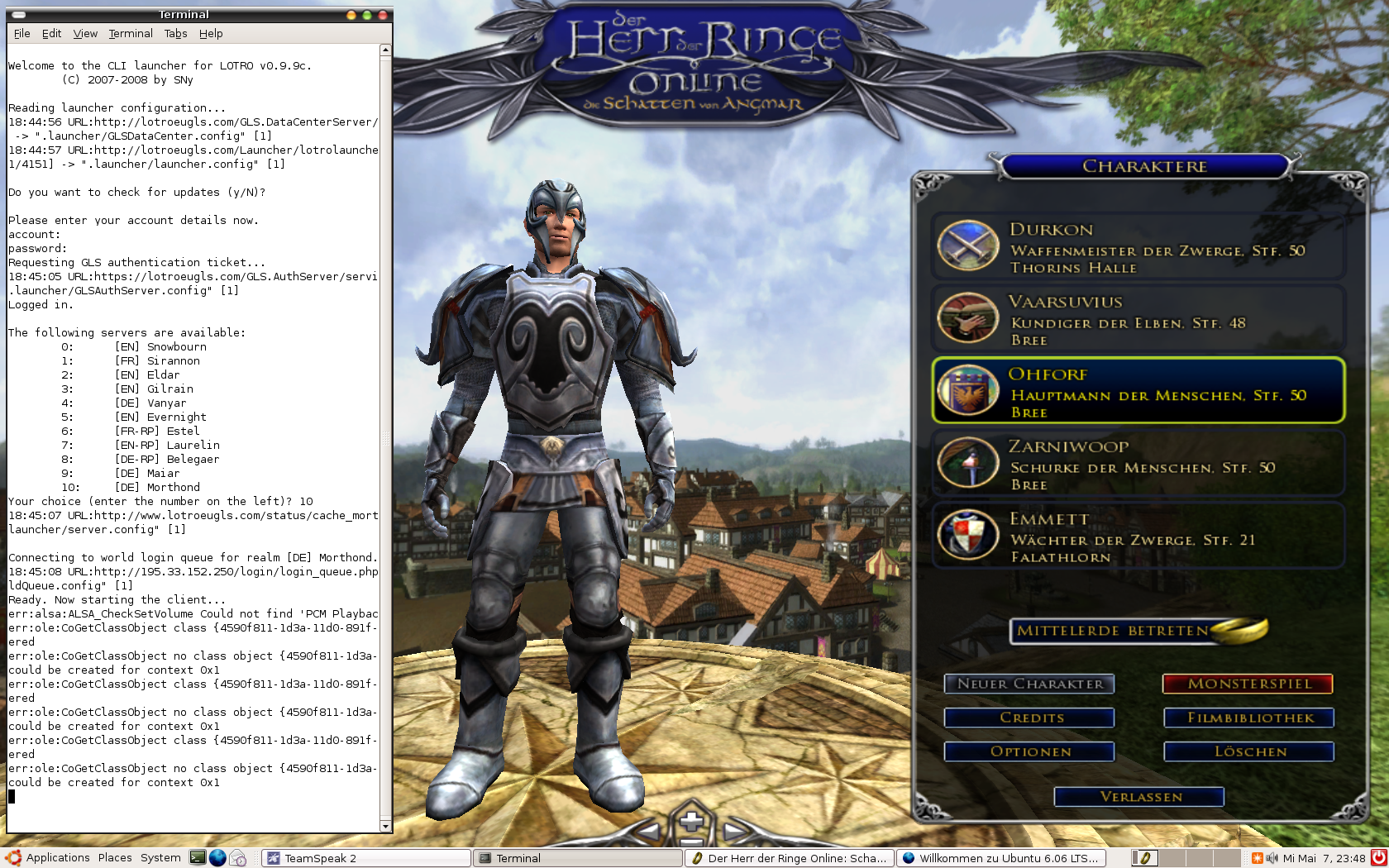
Script output
SNy@gripride:/usr/local/games/LOTRO$ ./lotrolauncher.script

Welcome to the CLI launcher for LOTRO v0.9.9b.
        (C) 2007-2008 by SNy

Reading launcher configuration...

Please enter your account details now.
account: XXXXXXXXXX
password:
Requesting GLS authentication ticket...
Logged in.

The following servers are available:
        0:	[EN-RP] Laurelin
        1:	[FR-RP] Estel
        2:	[DE-RP] Belegaer
        3:      [DE] Morthond
        4:      [DE] Maiar
        5:      [EN] Evernight
        6:      [FR] Sirannon
        7:      [EN] Snowbourn
        8:      [EN] Eldar
        9:      [DE] Vanyar
	10:	[EN] Gilrain
Your choice (enter the number on the left)? 3

Connecting to world login queue for realm Morthond...
Ready. Now starting the client...
So, what does it do, exactly?
-
It reads the original client xml configuration file TurbineLauncher.exe.config from the installation directory.
Using the information gathered from that file, it downloads another xml configuration file containing authentication setup and realm information from the official LOTRO server.
I have "built" a very simplistic parser on top of grep and sed that just gets all the realm names into an array for later use.
-
It asks you for your LOTRO account name and password (password will not be displayed while typing).
-
It connects to the LOTRO Global Login Service (GLS) on a secure web page (the adress of which it extracted from the downloaded file in step 1).
Turbine was kind enough to describe the auth service very well on the very service page, so using a simple POST gets the job done. :)
Unfortunately, the deployed webservices differ between the EU servers (which are run by Codemasters and support plain POST/GET) and the US servers (SOAP only) which complicates matters (but just a bit :D).
It uses wget to send your login credentials there and save the resulting xml file containing some account info.
Note that the secure page does not have a certificate wget recognizes, which might result in wget complaining aboutERROR: Certificate verification error for gls.lotro.com: unable to get local issuer certificate To connect to gls.lotro.com insecurely, use `--no-check-certificate'.
In that case, change the annotated line in the launcher script so that it looks like so# uncomment the following line if wget complains about "Certificate verification" errors wgetNoCheckCertOption="--no-check-certificate"
-
It extracts your numerical user/account ID as well as a generated GLS ticket from the xml file.
-
Now that the authentication has been done, it displays the list of realms it got from the service earlier.
All that is left to do here is to enter the appropriate number for the realm you wish to connect to.
Once you do that, it will extract the relevant server information from the config file.
Not everything is contained therein, so it needs to download a realm-specific file and "parse" that as well.
-
It then needs to activate the WorldLoginQueue. This is apparently needed for the client to actually be granted the login.
In order for the login queue to be activated, user id and ticket need to be sent to the world login queue server (address again taken from step 1).
For this step, it needs to URL-encode the ticket as well as the realm-specific login queue adress (which have been retrieved from the realm status file).
The script uses a well-known shell script called urlencode.sh for URL-encoding, so you need to get that off the net (eg. here).
-
The client is now ready to be started.
Note that for recent versions of wine (1.5.x), you do not need any special setup. It should, in fact, run properly in a completely new prefix.
Also note that this hasn't always been the case, wine has come a long way indeed. For a comprehensive history of stuff we used to do Back Then (TM),
consult this lenghty thread in the Ubuntu forum or the mentioned how-to in the WineHQ AppDB.
Troubleshooting
When you first start the game using my script and it fails to run, you will need to check for the reasons.As the script is really just a wrapper around some wget calls, the first thing to do is to tell wget to not be quiet.
To do that, locate the SETUP section and the line that starts with wgetOptions and replace -q with -v (v for verbose):
wgetOptions="--no-check-certificate -v"If you then run it again, you will get noisy feedback about the files it downloads and potential problems with them.
Likely reasons for failure include the servers being down on maintenance day or problems with the secure connection.
Nicolas Trecourt was kind enough to inform me that there is a problem with the SSL/TLS support of Turbine's servers and newer client side libraries.
If you encounter the connection not progressing at all, this might be the reason and it can be worked around by telling wget to default to SSL like so:
wgetOptions="--no-check-certificate -q --secure-protocol=SSLv3"